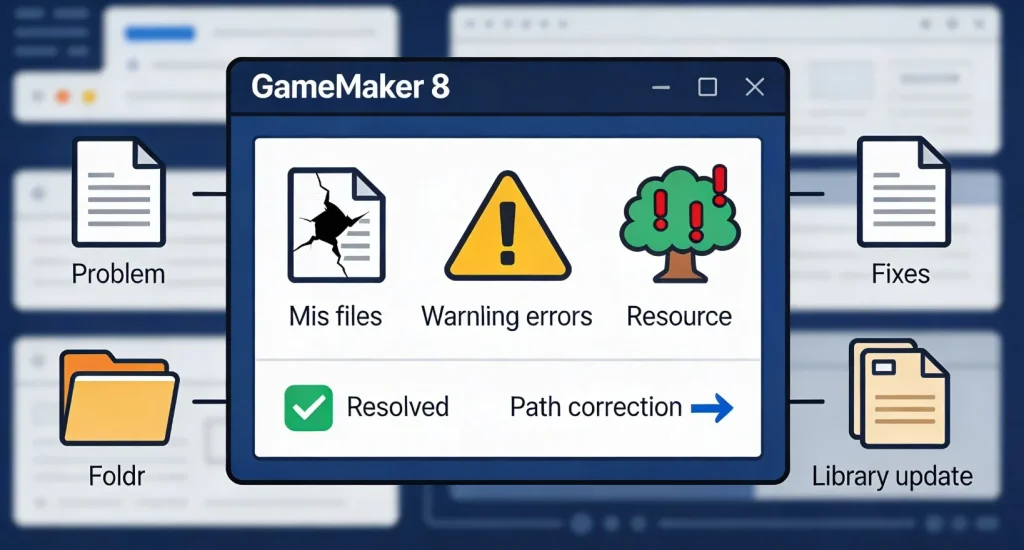
Exporting a finished project to an EXE file is the final and most important step when working with GameMaker 8. For many users, especially those running the engine on Windows 10 or Windows 11, this step is also the most problematic. Projects that run perfectly inside the editor suddenly refuse to compile, produce broken executables, or crash immediately after launch.
These issues are rarely caused by a single bug. Instead, they are the result of GameMaker 8’s age, outdated build tools, and incompatibility with modern operating system security and file-handling rules. Understanding how the EXE export process works—and where it typically breaks—makes it much easier to fix problems without trial and error.
This article explains the most common EXE build problems in GameMaker 8, why they happen, and how to fix them reliably. The focus is on real, documented issues that developers still encounter today when working with legacy projects.
How EXE exporting works in GameMaker 8
When you export an EXE in GameMaker 8, the engine does not simply “package” your project. Instead, it performs several internal steps. It compiles scripts, processes assets, links them with the GameMaker runtime, and writes everything into a single executable file.
This process depends on:
- correct access to system folders,
- stable temporary file creation,
- legacy runtime components,
- valid project paths and asset references.
If any of these steps fail, the export may stop with an error or complete successfully but produce a non-working EXE. Because GameMaker 8 was built for much older versions of Windows, modern systems often block or interrupt parts of this workflow.
Why EXE build problems are common on Windows 10 and 11
Modern Windows versions are far more restrictive than the systems GameMaker 8 was designed for. File permissions, antivirus behavior, and background security features all interfere with legacy build processes.
The most common underlying causes include:
- restricted write access to system directories,
- antivirus software blocking runtime generation,
- unsupported or missing legacy libraries,
- invalid project file paths,
- corrupted temporary build folders.
In most cases, the error message GameMaker displays is vague or misleading, which makes troubleshooting frustrating for beginners.
Permission-related export failures
One of the most frequent problems occurs when GameMaker 8 cannot write files during the build process. This usually happens when the program or the project is located inside protected directories such as Program Files, Documents, or cloud-synced folders.
GameMaker 8 expects unrestricted access to its working directory. If Windows denies access, the export may fail silently or stop with a generic “build failed” message.
A reliable fix is to ensure:
- GameMaker 8 is installed in a custom folder like
C:\GameMaker8, - projects are saved in a simple directory such as
C:\GMProjects, - the editor is always run with administrator privileges.
These changes alone resolve a large percentage of EXE export issues.
Antivirus and security software interference
Modern antivirus programs often flag GameMaker 8’s build behavior as suspicious. During export, the engine creates temporary executables, modifies runtime files, and writes compiled code—actions that resemble malware behavior.
As a result, antivirus software may:
- quarantine temporary build files,
- block the final EXE from being written,
- corrupt the exported executable without warning.
This leads to EXE files that fail to launch or crash immediately.
To avoid this, many developers temporarily disable real-time scanning during export or add the GameMaker installation and project folders to antivirus exclusions. Once the EXE is built, scanning can be safely re-enabled.
Missing or incompatible runtime components
GameMaker 8 relies on legacy runtime libraries that are no longer included by default in modern Windows installations. If these components are missing, the export may succeed, but the EXE will fail to run on your system or other computers.
This problem often appears as:
- EXE launches and closes immediately,
- missing DLL error messages,
- crashes before the game window appears.
Installing older Visual C++ redistributables usually resolves these issues. This is especially important if you plan to distribute the EXE to other users who may not have these runtimes installed.
Path length and file name issues
Another overlooked source of build errors is path length. GameMaker 8 was created before long file paths became common. Deeply nested folders, long project names, or asset files with complex naming conventions can break the export process.
Problems often occur when:
- project folders are stored deep inside user directories,
- asset file names contain special characters,
- paths exceed traditional Windows limits.
Keeping project paths short and simple reduces the risk of export failure significantly.
Corrupted temporary build files
GameMaker 8 uses temporary folders during the EXE export process. If these files become corrupted—often due to interrupted builds or antivirus interference—subsequent exports may fail even if the project itself is fine.
In these cases, the editor may repeatedly produce the same error regardless of changes to the project.
Manually clearing temporary build folders and restarting the system often resolves this issue. It forces GameMaker to regenerate all necessary files from scratch.
Common EXE Export Problems and Fixes
| Problem | Likely Cause | Practical Fix |
|---|---|---|
| Build fails instantly | Permission restriction | Install outside system folders |
| EXE does not launch | Missing runtime libraries | Install legacy VC++ packages |
| Export works, EXE crashes | Antivirus interference | Exclude folders or disable scanning |
| Random build errors | Corrupted temp files | Clear temp folders and reboot |
| Assets missing in EXE | Path length issues | Shorten project directory paths |
This table summarizes the most frequent export problems and the solutions that consistently work.
Issues specific to Pro and non-Pro versions
GameMaker 8 Free Edition and Pro Edition behave differently when exporting EXEs. The Free Edition embeds limitations that can affect export behavior, while Pro versions rely on license validation.
If the license is not properly recognized due to registry access restrictions, the export may fail or generate incomplete executables. Running GameMaker as administrator usually resolves license-related build problems.
It is also important to note that cracked or modified versions often introduce additional instability, increasing the likelihood of export errors.
Testing the exported EXE correctly
After a successful build, testing the EXE only on the same machine is not enough. Because GameMaker 8 relies on system libraries, an EXE that runs locally may fail on another computer.
Best practice includes:
- testing on a clean system or virtual machine,
- checking behavior without GameMaker installed,
- confirming that required runtimes are included or documented.
This step helps identify hidden dependencies early.
When EXE export still fails
In rare cases, projects themselves contain issues that prevent successful export. Infinite loops, corrupted assets, or unsupported extensions may run inside the editor but fail during compilation.
If all system-related fixes fail, creating a clean test project and gradually importing assets can help isolate the problem.
Conclusion
Exporting an EXE in GameMaker 8 on modern Windows systems is still possible, but it requires understanding how the engine interacts with today’s operating environments. Most build problems are not caused by the project itself, but by permissions, security software, or outdated dependencies.
By installing GameMaker correctly, keeping project paths simple, managing antivirus behavior, and ensuring legacy runtimes are present, developers can reliably export working EXE files even on Windows 10 and Windows 11.
GameMaker 8 may be old, but with the right setup, it remains a functional tool for legacy projects and learning game development fundamentals.